Technical Documentation
Last updated: June 30, 2026
Custom Dimensions
Gamera supports the concept of custom dimensions. A custom dimension is meta data that you would like to associate with a particular visit. For example, you might have some first party data about the food preferences of a current visitor that you would like to track in Gamera analytics (Visitor likes pizza).
Standard Dimensions
Before you add a custom dimension it is important to know that Gamera tracks the following standard dimensions automatically for visitors. You do not need to pass a custom dimension for any of the following types of dimensions:
Dimension | Description |
user_language | The language set in the user's browser. |
user_tz | The time zone of the user. |
referrer_type | The type of source that referred the user to the site. |
referrer_domain | The domain of the site that referred the user. |
page | The specific web page viewed by the user. |
viewport_size | The size of the user's viewport (browser window). |
device_type | The type of device used (e.g., desktop, mobile, tablet). |
os | The operating system of the user's device. |
os_version | The version of the operating system. |
browser | The web browser used by the user. |
browser_version | The version of the web browser. |
geo_country | The country from where the user is accessing the site. |
geo_region | The region within the country from where the user is accessing. |
geo_city | The city from where the user is accessing the site. |
geo_zip | The ZIP or postal code of the user’s location. |
geo_dma | The Designated Market Area of the user's location. |
utm_campaign | The campaign content from UTM parameters |
utm_term | The campaign content from UTM parameters |
utm_source | The campaign content from UTM parameters |
utm_content | The campaign content from UTM parameters |
utm_medium | The campaign medium from UTM parameters |
What are UTM Parameters?
UTM parameters (Urchin Tracking Module parameters) are tags that you add to a URL in order to track the effectiveness of online marketing campaigns across traffic sources and publishing media. They are used in web analytics to measure and analyze the performance of campaigns by providing detailed information about the traffic coming to your website.
Common UTM Parameters:
utm_source: Identifies the source of the traffic, such as a search engine (e.g., Google), a social network (e.g., Facebook), a newsletter, or a website.
utm_medium: Identifies the medium or channel used to bring the traffic, such as email, cost-per-click (CPC), social media, or affiliate.
utm_campaign: Identifies a specific campaign or promotion, allowing you to track the performance of a specific marketing effort (e.g., summer_sale, launch_campaign).
utm_term: Identifies the paid search keywords. This parameter is used to track the specific keywords for paid search campaigns.
utm_content: Differentiates similar content or links within the same ad, email, or campaign, helping to track which version of a link or content was more effective.
Example of a URL with UTM Parameters:
https://www.example.com/?utm_source=google&utm_medium=cpc&utm_campaign=spring_sale&utm_term=running_shoes&utm_content=ad1
In this example:
•	utm_source=google indicates the traffic came from Google.
•	utm_medium=cpc indicates the medium is cost-per-click.
•	utm_campaign=spring_sale specifies the campaign name.
•	utm_term=running_shoes specifies the search keyword.
•	utm_content=ad1 differentiates this link from other links within the same campaign.
Using UTM parameters allows marketers to track the performance of various marketing efforts, understand user behavior, and optimize future campaigns based on data-driven insights.
Tracking Custom Dimensions
If you would like to attach additional dimensions to your visitors not tracked by our standard dimensions you must complete the following two steps:
Add the custom dimension to the list of allowed dimensions in the Gamera Site Manager
Pass the custom dimension from your site by adding some additional Javascript to your page.
Adding Custom Dimension to Allowed Dimensions
Gamera will reject all dimensions that are not added by you or your team members to the list of allowed dimensions in the Gamera Site Manager. Please note, each site has its own inclusion list. You can add an approved custom dimension by following these simple steps
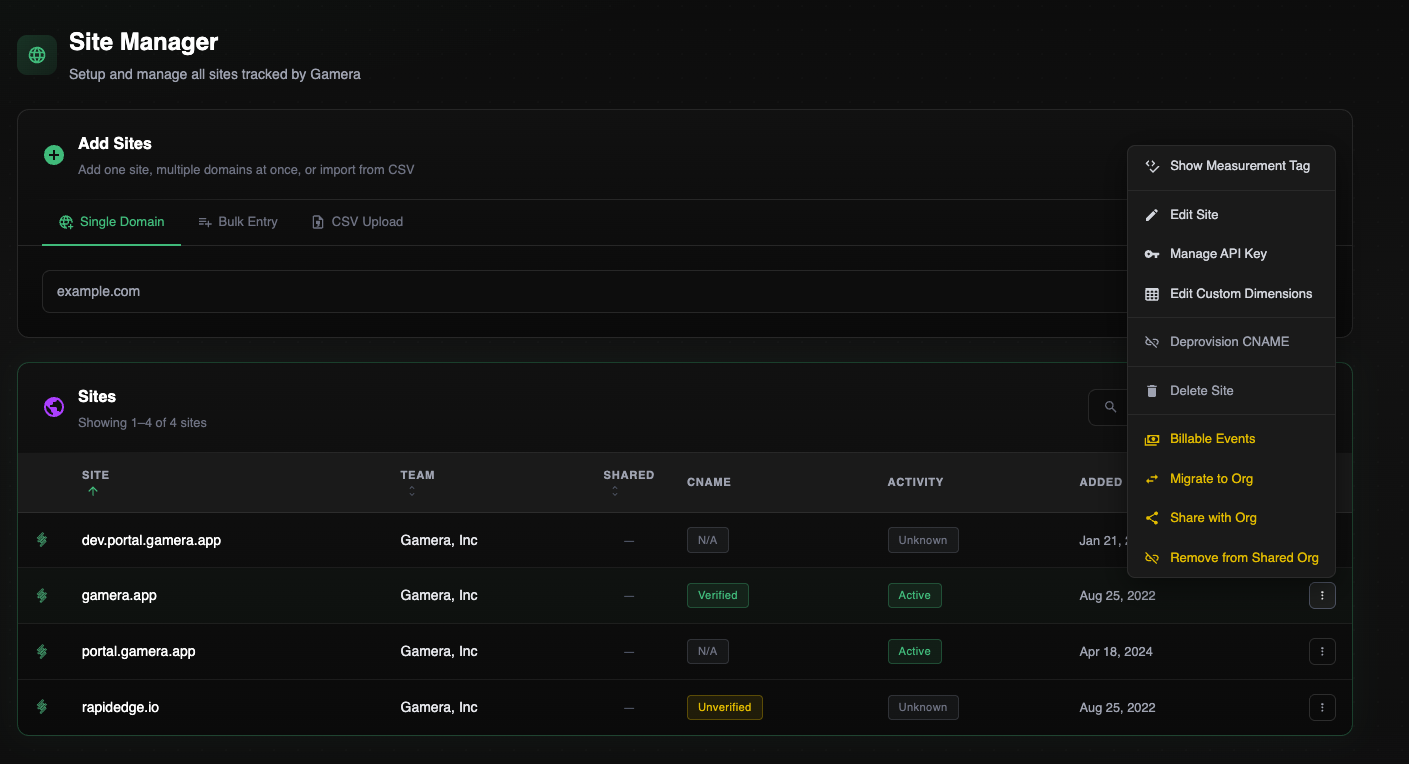
In the Gamera Portal click on Site Manager tab
From the Site Manager tab, click on the Actions Menu of the site you wish to add the dimension to
Select Edit Custom Dimensions from the site Actions Menu
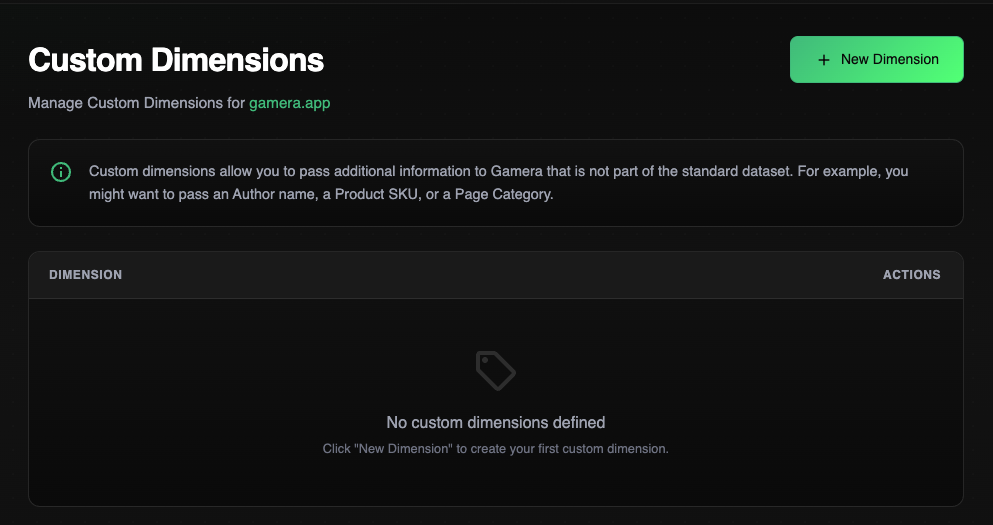
From the Custom Dimensions page, select New Dimension
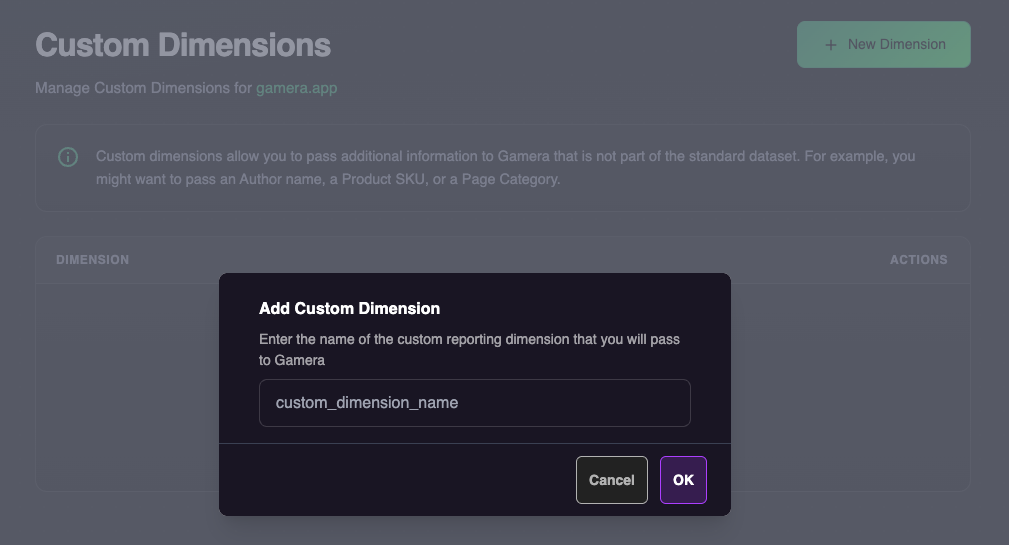
Enter the name of your custom dimensions
Click Ok to add the custom dimension
Passing in Custom Dimensions from your Site
In order to consume your new custom dimension, you must pass the dimension along with its value from your site to Gamera using our on page library.
Please note that this code should be placed immediately before or after the Gamera JavaScript library tag. Placing the code too far down in your site's head or body may result in the dimensions not being sent for every user session
window.gamera = window.gamera || {};
window.gamera.cmd = window.gamera.cmd || [];
window.gamera.cmd.push(function() {
    window.gamera.addDimensions({
        // List your custom dimensions as
        // key value pairs here
        "favorite_food": "pizza",
        // If your dimension contains
        // multiple values, separate
        // them with commas
        "multi-value-dimension": "value1,value2,value3",
        // If your dimension contains
        // a single value, pass it as
        // a string
        "single-value-dimension": "this-is-a-test-value"
    });
});
Custom Dimension Limitations
The following limits are applied to custom dimensions:
You can have at most 50 custom dimensions (keys)
There is a 100 character limit per key-value pair (the name and value of the custom dimension combined).
Multi dimension values are treated as multiple custom dimensions. For example
animal=bird,dogare treated as two custom dimensions, each having their own 100 character limit.
Custom Events
Custom events differ from custom dimensions as they signify that a particular action has occured. The following is an illustrative examples of what might be considered a custom event:
A User Logged In
A User Purchased a Product
A User was Presented with a Paywall
A User was Asked to Subscribe
A User unlocked an Achievement
Custom Event Properties
A custom event may have some properties associated with it. These properties are treated as string values. For example, if your custom event was "purchased_product", a custom property might by "product_sku" with a value of "123456".
Reserved Properties / Metrics
In addition to custom properties, there are a set of properties which, when provided, will act as custom metrics. These reserved properties will not be treated as strings and must contain only numeric values.
List of reserved properties:
Property | Description |
value | Any arbitrary numeric value to associate with the event |
score | A score to associate with an event |
shipping | A shipping amount (revenue value) to associate with the event |
tax | A tax amount (revenue value) to associate with the event |
revenue | A sales/revenue value to associate with the event |
Adding Custom Events
To add a custom event you will call a javascript function from the Gamera on page library at the time the event occurs on your site. The following examples demonstrate how to use custom events:
Example 1 - Custom event with custom properties
window.gamera = window.gamera || {};
window.gamera.cmd = window.gamera.cmd || [];
window.gamera.cmd.push(function() {
    window.gamera.event("my-custom-event", {
        "property-1": "test-value",
        "property-2": "value1,value2,value3",
        "score": 99
    });
});
Example 2 - Tracking a user funnel
window.gamera = window.gamera || {};
window.gamera.cmd = window.gamera.cmd || [];
window.gamera.cmd.push(function() {
    window.gamera.event("email_subscription_offered");
    // or
    window.gamera.event("email_subscription_accepted");
    // or
    window.gamera.event("email_subscription_rejected");
});
Milestones
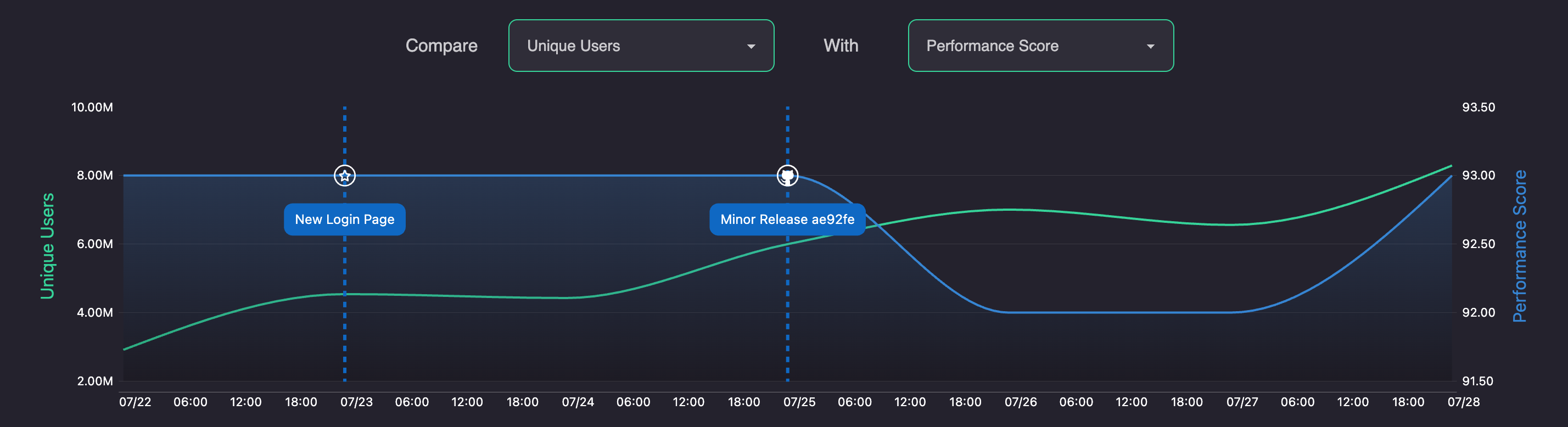
Milestones are significant events that occur during the lifecycle of your business which you would like to correlate against performance. For example, let's say that you just released a significant new layout to your website, and wanted to observe your core web vitals performance before and after the release. In the screenshot below, you can see this example in action:
How to create a milestone
Milestones can be created simply by sending your values to an HTTP Get request (web request) at the following url: https://portal.gamera.app/api/sites/mysite.com/milestones
The following URL Parameters are supported:
URL Parameter | Required/Optional | Description |
token | Required | Your milestones api token |
label | Required | The text you would like to appear on the chart |
labelURL | Optional | The url to link to when the label is clicked |
date | Optional | An ISO 8601 date string of the date/time of the event. If omitted, we use the time that the event was received. Example: 2024-08-14T13:30:45.123-05:00 would be a valid date string for the EST timezone |
A more complete example is available below:
https://portal.gamera.app/api/sites/mysite.com/milestones?token=<my_api_token>&label=Introducing%20Gamera%20Milestones&labelURL=https://github.com/my/release/urlGenerating a milestones API token
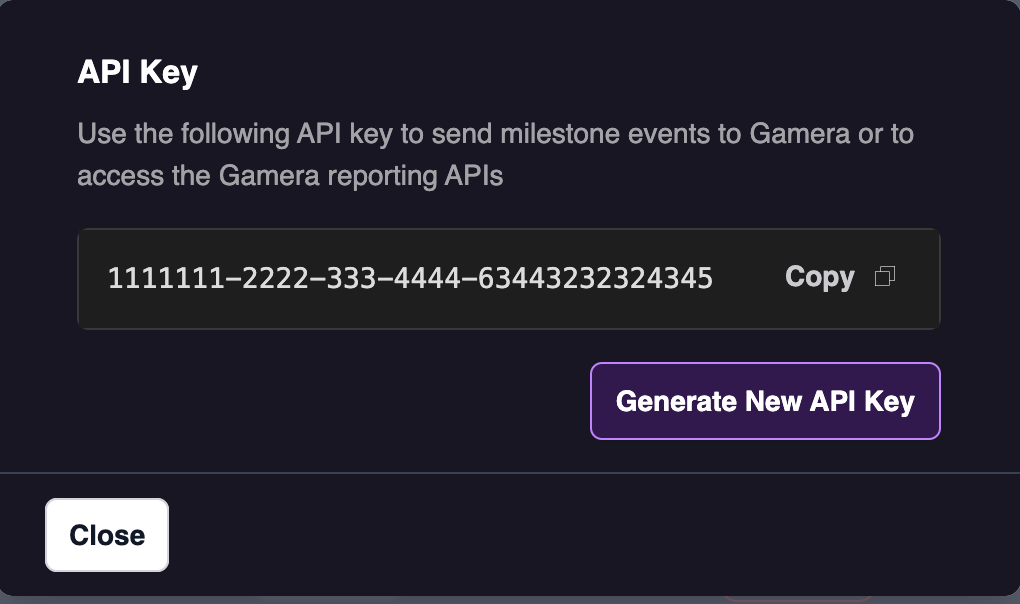
To send milestone events to gamera you will need an API token. To retrieve or generate a new API token please follow these steps:
Select Site Manager from the left hand navigation menu
Find the site you wish to generate an API key for
Click the right hand actions menu (3 vertical dots)
Select Manage API Key
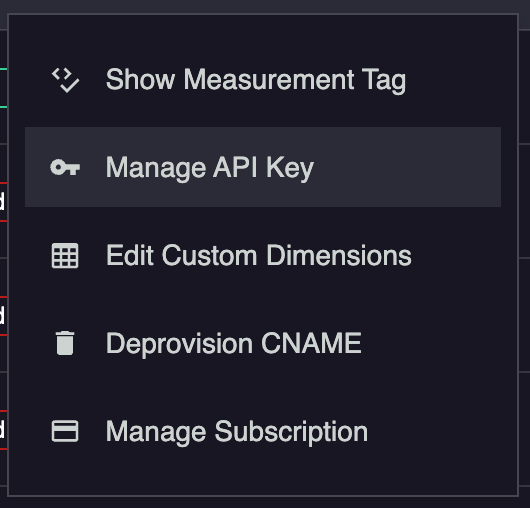
Select Generate New API Key or copy the existing API key